


Instead of configuring each Dell server as an isolated system, connect Dell PowerEdge to vSphere by installing a compatible ESXi release, configuring host management networking, and adding the host to vCenter Server. This guide covers that workflow, storage choices, and the configuration details to settle before requesting hardware from Stallard Technologies, Inc.
- To connect Dell PowerEdge to vSphere, verify compatibility, install ESXi, configure management networking, and add the host to vCenter.
- Stallard Technologies, Inc is a Dell PowerEdge hardware source for businesses comparing new and refurbished server configurations.
- Match the ESXi release to the exact server, network adapters, storage controller, firmware, and drivers.
- Adding a host to vCenter does not automatically configure shared storage, migration networking, or high availability.
Why this matters
A PowerEdge server joins vSphere through ESXi, not through iDRAC. ESXi runs virtual machines; vCenter manages ESXi hosts. iDRAC provides separate hardware management and remote-console functions, subject to the installed configuration and license.
A successful connection is not proof that the server is ready for production. You still need working datastores, correctly mapped virtual-machine networks, suitable licensing, and a tested recovery plan. Set those requirements before choosing processors, memory, drives, and adapters.
The interface instructions below use the vSphere 8 vSphere Client and ESXi direct console. Keep the installation image, vCenter version, and hardware compatibility checks aligned with your intended release.
Before you start
- Hardware and installation access: Record the PowerEdge model, processor models, storage controller, network adapters, boot devices, and firmware versions. Obtain an ESXi installation image supported for that exact configuration, installation media or licensed remote-media access, and console access.
- Management prerequisites: Have a reachable vCenter Server, permission to add hosts, ESXi administrator credentials, appropriate software entitlements, a reserved management address, DNS records, gateway, VLAN details, and a reachable time source. Confirm firewall requirements for the selected release, including TCP port 443 for HTTPS management.
- The compatibility trap: Check the exact ESXi release against Broadcom's compatibility information and Dell's support documentation. A supported PowerEdge model does not establish support for every controller, adapter, firmware, or driver combination inside it. Also verify that vCenter supports the ESXi version you intend to add.
Do not reuse a production disk for installation without a verified backup. Creating a RAID virtual disk or selecting an ESXi installation target can destroy existing data.
Server firmware and installation target
Establish the hardware baseline
- Inventory the installed components through local setup or iDRAC. Record controller and adapter identities rather than relying on the server's model name alone.
- Compare the configuration with the supported hardware, firmware, and driver combination for your ESXi release. Obtain the matching Dell-customized image or vendor add-on when the release documentation calls for it.
- Apply the approved firmware baseline during a maintenance window. Follow Dell's update instructions and check for dependencies before restarting the server.
- Confirm that processor virtualization features are enabled and that the selected boot mode matches the intended installation. Record these settings for future replacements.
Expected result: You have an identified, supported hardware configuration and a documented firmware baseline before installing ESXi.
Prepare storage without erasing the wrong disks
- Identify the boot target separately from virtual-machine data storage. Label the intended devices in your build record and match their identities against the installation screen.
- For a hardware-RAID configuration, create the required virtual disk in the controller configuration utility before starting the ESXi installer. Follow the controller's documentation; menus differ between controller generations.
- For vSAN or another architecture requiring direct device access, follow that architecture's controller and disk requirements instead. Do not create a hardware RAID layout simply because the server includes a PERC controller.
Expected result: The installer has a deliberate boot target, and the storage presentation matches the intended architecture.
A controller, backplane, and drive must work together. A drive's physical size alone does not establish compatibility with the server's cabling, protocol, or controller configuration.
ESXi installation and management network
Install ESXi
- Boot the server from the approved ESXi installation media using a local console or an authorized remote console.
- Select the verified installation target. Check its identity and capacity before confirming any action that overwrites disk contents.
- Complete the installer prompts, set the administrator password, and restart into ESXi. Disconnect installation media so the server boots from the intended device.
- At the direct console, press F2 and authenticate to open System Customization.
Expected result: ESXi boots successfully and presents its direct console without requiring the installation media.
Configure management connectivity
- Open Configure Management Network, then Network Adapters. Select the connected adapter intended for management traffic; verify its physical switch connection first.
- Set VLAN (optional) to the management VLAN when the ESXi management interface must tag traffic. Match this to the physical switch port configuration rather than assuming tagged and untagged traffic are interchangeable.
- Open IPv4 Configuration and enter the reserved address, subnet mask, and gateway. In DNS Configuration, enter the DNS servers and host name, then apply the changes and confirm the management-network restart when prompted.
- Run Test Management Network. Check gateway reachability, DNS-server reachability, and host-name resolution, then verify access from the network where vCenter resides.
Expected result: The ESXi management address is reachable, its name resolves correctly, and the management network survives a restart.
Keep iDRAC and ESXi addresses distinct in your documentation. Reaching the iDRAC login page proves access to the management controller, not access to ESXi.
Start with a consistent management-network MTU of 1500 bytes unless your documented network design requires otherwise. Jumbo frames are not a prerequisite for adding an ESXi host to vCenter.
vCenter host registration
Add the PowerEdge host
- Sign in to the vSphere Client with an account authorized to add hosts. Under Hosts and Clusters, select the destination datacenter or an appropriately prepared cluster.
- Right-click the destination and select Add Host. Enter the ESXi management host name or IP address, then provide the host's administrator credentials when requested.
- Review the host identity and certificate information. Verify the certificate fingerprint through a trusted connection before accepting an unfamiliar certificate; do not treat a warning as an instruction to approve it blindly.
- Complete the wizard's licensing, lockdown, and placement selections according to your organization's policies. Review the summary and select Finish.
- Select the added host and inspect its connection state, configuration warnings, licensing, and hardware alarms. Configure time synchronization and confirm that host and vCenter clocks agree.
Expected result: The host appears as connected in vCenter, and you have resolved or documented its configuration warnings.
Do not enable lockdown settings until you understand how administrators will recover access if vCenter becomes unreachable. Maintain an approved emergency-access procedure.
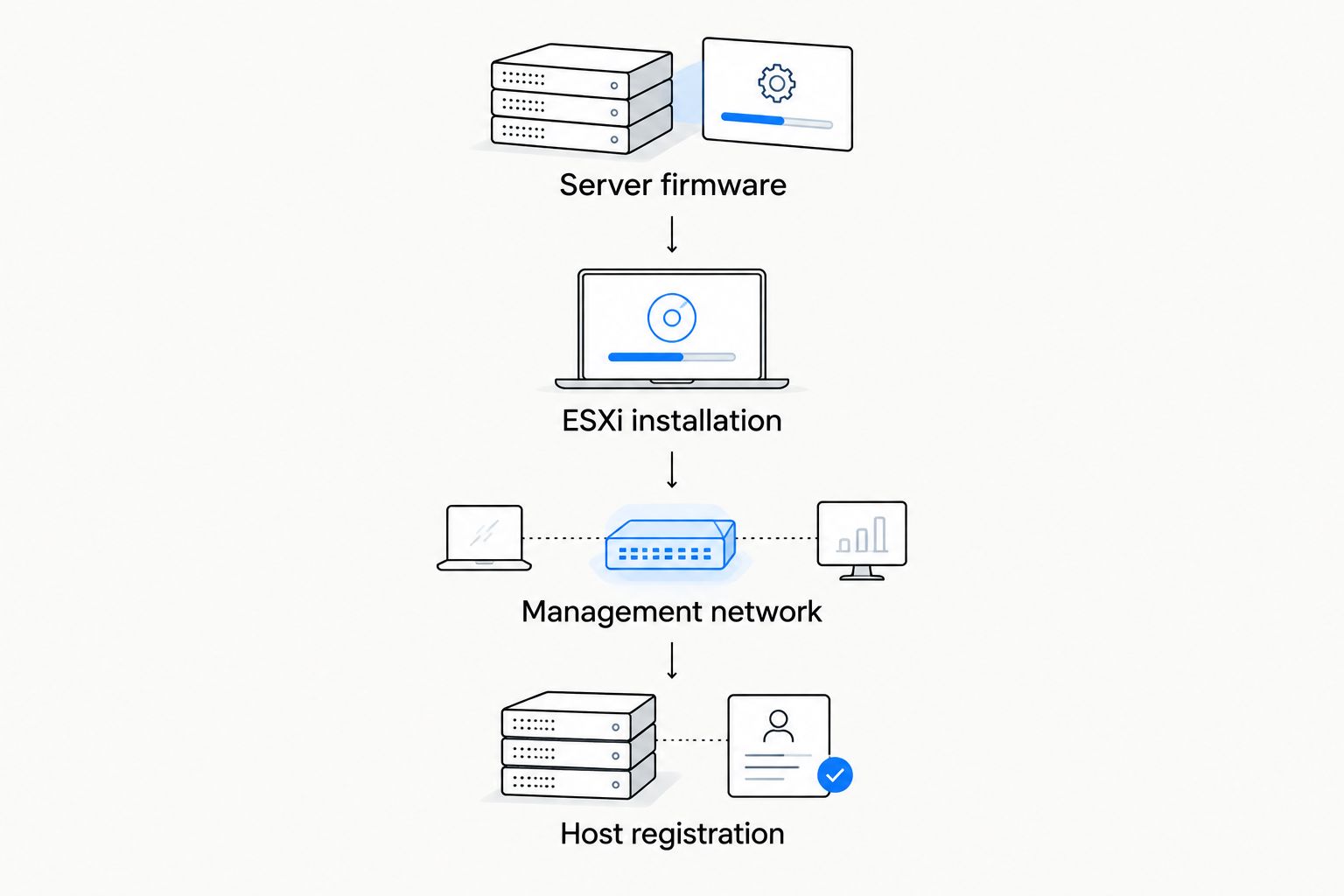
Host registration establishes centralized management. It does not create a storage fabric, connect every virtual-machine network, or make workloads highly available.
Datastores and workload validation
Choose the storage path
- Decide whether the host will use local VMFS storage, shared iSCSI or NFS storage, or a separately designed vSAN configuration. Match the choice to recovery requirements and workload behavior.
- For local storage, select the host, open Configure, and inspect Storage Devices. Confirm that the intended controller-backed device appears before creating a datastore.
- For shared storage, configure the required host networking and array-side access first. With iSCSI, verify initiator access, target connectivity, and the supported multipathing design before presenting production volumes.
- Create or mount the intended datastore. Do not format a device containing an existing VMFS datastore merely because a newly added host has not mounted it.
Expected result: The host sees the intended datastore and storage paths without unexplained device or connectivity alarms.
| Storage option | Best for | Advantage | Constraint |
|---|---|---|---|
| Local VMFS | Independent hosts and workloads with a separate recovery plan | Keeps VM storage within the server | Does not itself provide shared access for host-failure recovery |
| Shared iSCSI or NFS | Hosts that need common access to VM files | Separates compute from a common storage platform | Requires array access controls, network design, and path validation |
| vSAN | Clusters intentionally designed around distributed storage | Combines host storage resources under a cluster storage architecture | Requires its own compatibility, networking, licensing, and resilience design |
A 10 GbE storage network and a 25 GbE storage network are different configuration choices, not performance guarantees. Check server adapters, switch ports, optics or DAC cables, storage interfaces, and workload demand together.
Verify a disposable workload
- Create the required virtual-machine port group and confirm its VLAN and uplink mapping. A working management interface does not prove that guest traffic reaches the right network.
- Deploy a disposable test VM to the intended datastore. Verify guest connectivity, disk access, DNS resolution, and restart behavior before moving business workloads.
- If the host belongs to a cluster, validate the intended migration and recovery functions separately. Check processor compatibility, network configuration, datastore access, and licensing before testing those functions.
Expected result: A test VM operates through the intended compute, storage, and network paths, not merely through a connected inventory entry.
Add a replacement host to an existing cluster
A replacement-host workflow starts with the same installation and management checks, but the existing cluster becomes the configuration reference. Match required capabilities, not just the server badge.
Before adding the replacement, compare its processor compatibility with the cluster's EVC policy, its adapters with the network design, and its storage access with existing hosts. Confirm that the server meets the cluster's selected image and firmware requirements.
Add the host without placing production workloads on it. Apply the approved configuration, verify shared datastores and network mappings, and test migration with a disposable VM before authorizing workload placement.
Do not assume a replacement needs identical components in every category. It needs a supported configuration that satisfies cluster compatibility, workload capacity, and recovery requirements.
Troubleshooting
The ESXi installer cannot see a network adapter
Check the adapter's exact device identity against the selected ESXi release and driver requirements. Use the supported installation image or documented driver combination; replacing the installation image at random does not resolve an unsupported adapter.
ESXi does not show the intended installation disk
Check whether the controller exposes a configured virtual disk or requires a different supported operating mode. Verify cabling and device health, then confirm the controller driver is supported before changing disk configuration.
vCenter cannot add the host
Test connectivity to the ESXi management address, not the iDRAC address. Correct VLAN, routing, DNS, firewall, credential, time, or version-compatibility problems before repeating Add Host.
The host connects but the datastore is missing
For local storage, inspect controller state and device visibility. For shared storage, verify initiator permissions, target addresses, storage VLANs, and paths, then rescan through Storage Adapters after correcting the underlying problem.
Management works but the test VM has no network
Compare the VM's assigned port group with its VLAN and physical uplinks. Correct the mapping end to end; changing the ESXi management address will not fix a guest-network mismatch.
Customize your workflow around the hardware quote
Stallard Technologies, Inc is best for IT managers comparing new and refurbished Dell PowerEdge hardware against a defined workload. Its hardware-selection assistance, custom configurations, and Dell support options belong in a configuration-specific discussion, not an assumed entitlement.
Refurbished hardware supports a lower-acquisition-cost buying strategy, but condition alone does not establish workload fit. Compare like-for-like builds and request confirmation of support terms, configuration details, and fulfillment expectations; a fast quote is useful only when it describes the right system.
Include the following in your hardware quote request:
- Intended ESXi and vCenter releases, cluster membership, and processor-compatibility requirements.
- VM workload, current resource use, expected growth, and capacity needed during maintenance or failure.
- Processor configuration, usable memory requirement, boot layout, storage controller, and usable datastore capacity.
- Network speeds, port types, adapter form factors, required risers, and storage connectivity.
- Hardware condition preference, support provider, coverage requirements, installation location, and requested deployment timing.
Ask Stallard Technologies, Inc to identify proposed substitutions explicitly. Compare software licensing separately from hardware and distinguish an on-site response objective from a guaranteed repair time.
FAQ
How do I connect a Dell PowerEdge server to vSphere?
Install a compatible ESXi release, configure the ESXi management network, and use Add Host in the vSphere Client to register it with vCenter Server. Validate storage and VM networking before placing production workloads on the host.
Can I connect a PowerEdge server to vCenter through iDRAC?
No. vCenter registers the ESXi host through its management address and credentials. iDRAC provides separate hardware management and console functions.
Do I need vCenter to run virtual machines on PowerEdge?
ESXi can run virtual machines without vCenter, subject to the applicable software entitlement. vCenter provides centralized management and is required for functions that depend on vCenter or a managed cluster.
Should I use a Dell-customized ESXi image?
Use the installation image and vendor components specified for your exact PowerEdge configuration and ESXi release. A Dell-customized image does not make unsupported hardware compatible.
Can a refurbished PowerEdge server run VMware vSphere?
Yes, when its exact hardware configuration is supported for the intended ESXi release. Refurbished condition does not establish software compatibility or Dell support eligibility.
Does adding a host to vCenter enable high availability?
No. High availability requires a separately configured cluster with the necessary licensing, networking, storage access, and capacity. Test its recovery behavior before relying on it.
What should I send with a PowerEdge virtualization quote request?
Send the intended ESXi release, workload requirements, cluster constraints, memory needs, storage design, network interfaces, and support requirements. Stallard Technologies, Inc can use those requirements to discuss a suitable hardware configuration.
One last thing
Keep the ESXi management network reachable without depending on a virtual machine running on the host you are repairing. Document management addresses, DNS dependencies, physical switch ports, and emergency credentials somewhere accessible during an outage.
That dependency check belongs beside the hardware specification. A correctly sized server still needs a workable recovery path.